

Account and Billing
Manage your plan, credits, invoices and usage, and your own sign-in, emails and account.
Billing belongs to the organization: its plan and its credit balance are shared by everyone in it. Your sign-in, email settings and account are your own.
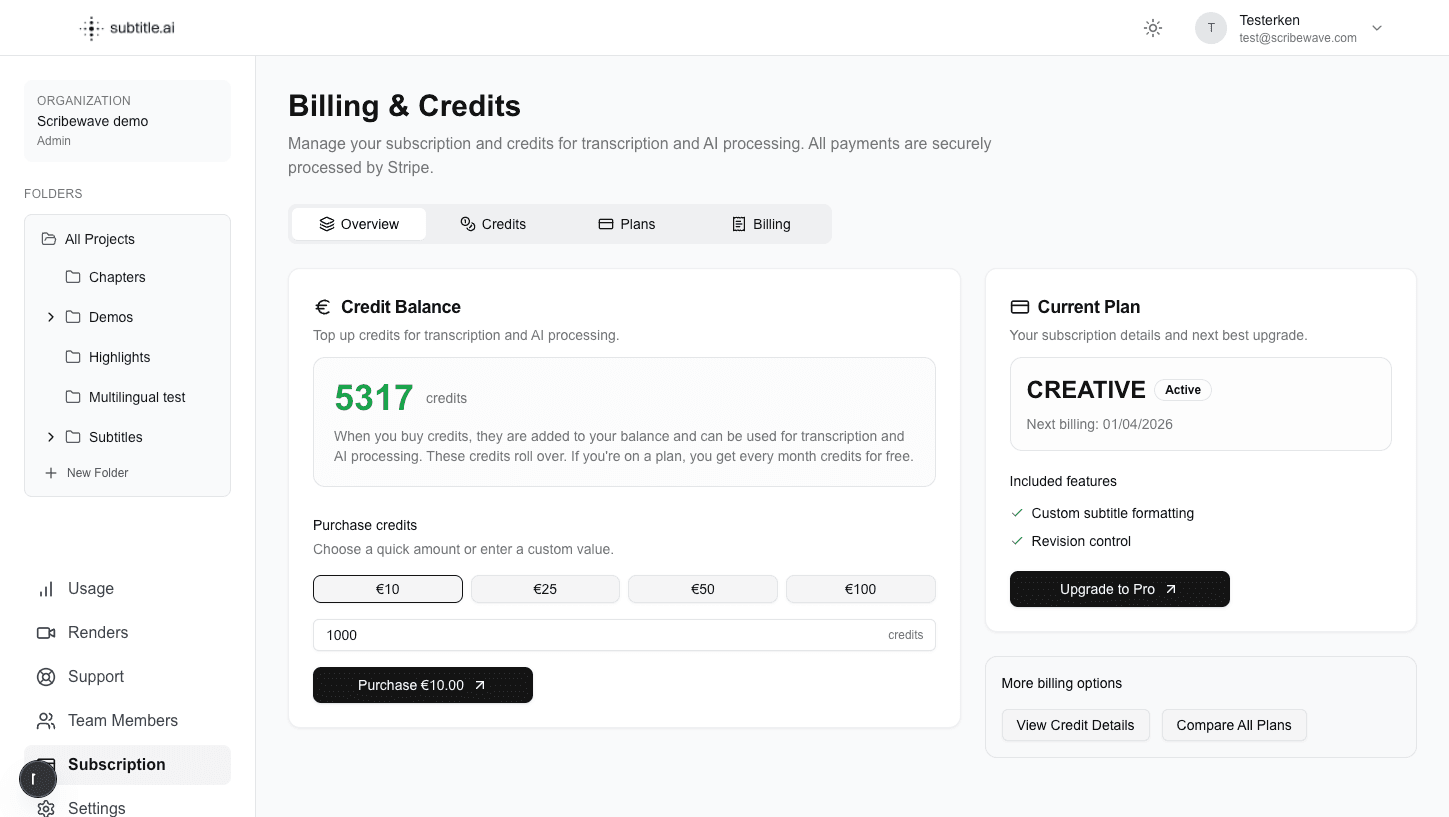
Plans
There are five plans: Free, Creator, Team, Pro and Enterprise. They differ in the credits added each month, the number of members, and the longest and largest file you can upload.
| Plan | Members | Longest file | Largest file |
|---|---|---|---|
| Free | 1 | 30 minutes | 200 MB |
| Creator | 1 | 60 minutes | 500 MB |
| Team | 5 | 180 minutes | 2 GB |
| Pro | 10 | 300 minutes | 5 GB |
| Enterprise | Unlimited | 300 minutes | 5 GB |
Organization owners and admins change the plan:
- In the sidebar, click Subscription.
- Open the Plans tab. It shows each plan's price, credits, members and file limits.
- Click Upgrade on the plan you want. Downgrade opens the billing portal, and Talk to us on Enterprise emails the team.
Credits
Transcription, AI formatting, translation, AI highlights and chapters, and video renders are paid from your organization's credit balance.
On a paid plan, each monthly renewal tops the balance up to the plan's monthly credits. Unused plan credits do not add up from month to month. If the balance is already above the monthly amount, for example because you bought credits, it stays as it is. When you upgrade, the new plan's credits are added to your balance.
Owners and admins buy more at any time:
- In the sidebar, click Subscription and open the Credits tab.
- Under Buy credits, choose €5, €10 or €50, or Custom for a whole amount from €5 to €500.
- Click the button that shows the credits and the price, and pay in the secure checkout.
When you do not have enough credits for an upload, a render or an AI tool, the Not enough credits to continue window shows how much you are short. Top up buys the smallest amount that covers it.
Invoices and payment details
- In the sidebar, click Subscription and open the Billing tab.
- Under Payment History & Invoices, click Open billing portal.
- In the billing portal, download invoices or update your payment details.
Only owners and admins can open the Subscription page.
Usage
See what your organization has spent, and on what.
- In the sidebar, click Usage.
- Choose a period, from Last 7 days to All time. Last 30 days is the default.
- Open Usage Trends, Usage Breakdown, Comparison or Pricing Breakdown. The breakdown splits costs by service: transcription, formatting, translation, other AI tools, uploads and video renders.
- Click Export Excel for a spreadsheet with one row per day.
Members see their own usage. Owners and admins can switch between Individual Usage and Organization Usage, and pick one member.
Sign-in and password
Sign in with Continue with Google, or with your email address and password. The sign-in page marks the method you used last in this browser as Last used. If you created your account with Google and try a password, the page tells you to use Google instead.
Add a password to a Google account:
- Open Settings > Profile.
- Under Change Password, enter a password of at least 8 characters in Set password and Confirm password.
- Click Save changes.
You can then sign in either way.
Forgot your password: on the sign-in page, click Forgot password?, enter your email address and click Send reset link. The link in the email works for a limited time. Accounts that only use Google get no reset email: use Continue with Google.
Email notifications
Choose which emails Subtitle AI sends you.
- Open Settings > Notifications.
- Turn each type on or off. Changes are saved straight away.
| When it is sent | Who gets it | |
|---|---|---|
| Render is ready | A video you rendered is ready to download | The person who started the render |
| Transcript is ready | A file you uploaded has been transcribed | The project's owner |
| Low credit warnings | Your organization is running low on credits, and again when it runs out | The organization's owner |
| Credits added | Credits are added with a subscription payment | The organization's owner |
All four are on to start with. Each email also has Unsubscribe from these, which turns off that one type, and Manage email preferences. Sign-in verification codes and password reset emails are always sent.
Delete your account
- Open Settings > Profile.
- Under Delete account, click Delete my account.
- Read the list of what will be deleted: your account, every workspace you own with its projects and files, and their unspent credits, which are not refunded. Workspaces you belong to but do not own are kept; you are removed from them.
- Type your email address to confirm. If you sign in with a password, enter it too.
- Click Permanently delete my account.
You are signed out, and this cannot be undone. A subscription on a workspace you own is cancelled. Signing up again does not give you new free credits.
If you own a workspace that has other members, you cannot delete your account yet. Remove the other members first on the Team Members page. If one of them is also an owner, email support@subtitle.ai.
Help and support
In the sidebar, click Support. The page has:
- FAQs: answers to common questions about the editor and exports.
- Tutorial: First Look: a video walkthrough of the editor.
- Contact Support: email the support team at support@subtitle.ai.