

Organization
Invite teammates, share projects and folders, and work in more than one organization.
An organization is a shared workspace. It has its own projects, folders, members, credits and plan, upload presets, tone of voice and API keys. Your profile and email settings are yours, in every organization you belong to.
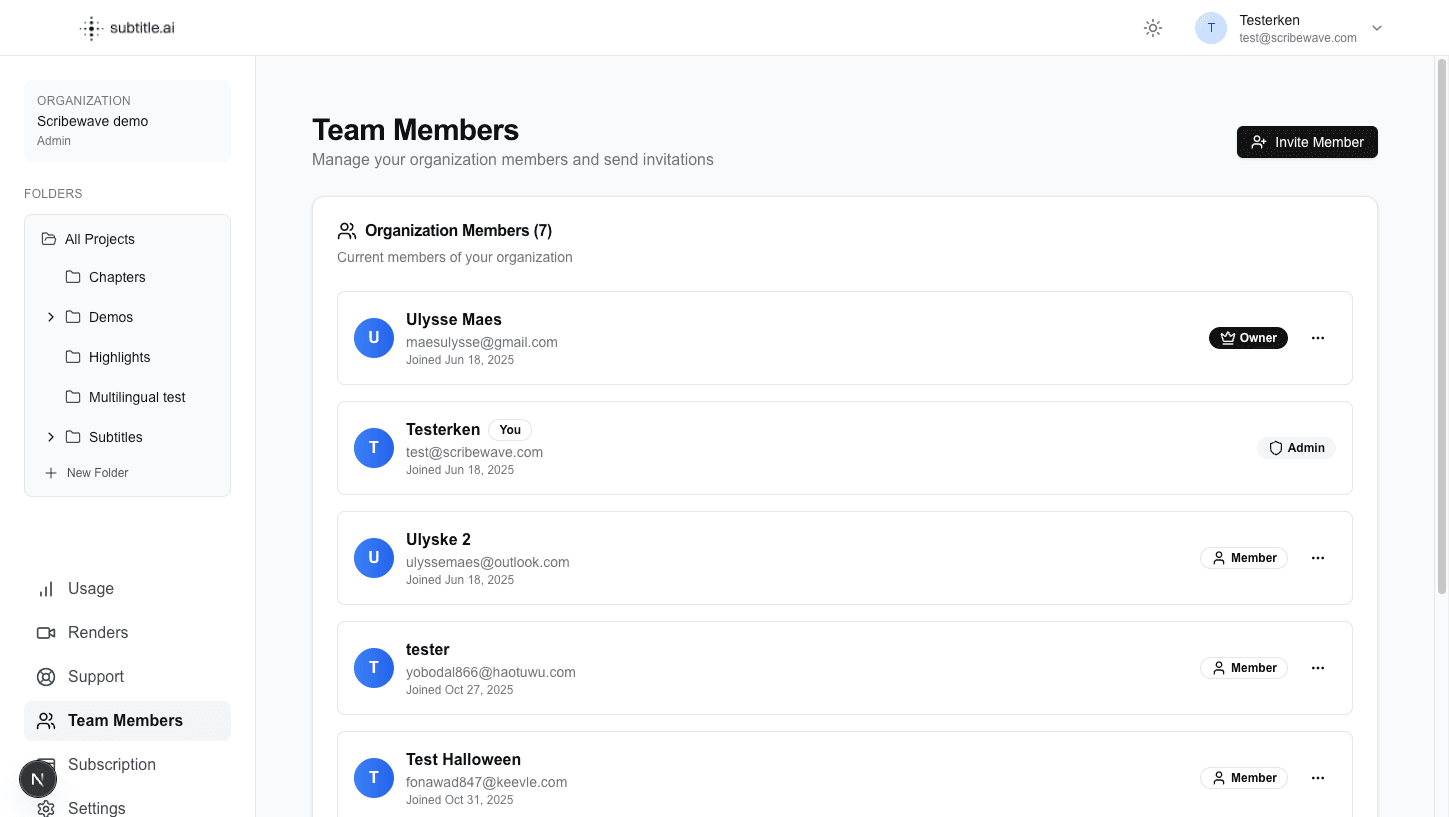
Team members
Organization owners and admins invite people from the Team Members page.
- In the sidebar, click Team Members.
- Click Invite Member.
- Enter the person's Email Address and click Create Invitation.
Subtitle AI emails the invitation, and copies the invitation link to your clipboard so you can also send it yourself. Until it is accepted, it is listed under Pending Invitations, with Copy Link and a bin to withdraw it.
New people join as a Member. To give someone another role, an owner opens ⋯ on their row, chooses Edit Role, picks Member, Admin or Owner, and clicks Update Role. Remove Member takes them out of the organization and removes their access to all its projects.
| Role | What they can do |
|---|---|
| Owner | Everything an admin can, plus change roles and remove members |
| Admin | Invite people; open the Team Members, Subscription and API Keys pages; see usage for the whole organization; rename it; manage upload presets, team style presets and tone of voice; upload images to the shared library; share projects and folders |
| Member | Upload projects, work on the projects shared with them, see their own usage, and use Renders, Support and Settings |
Only owners can change roles and remove members. An owner's role cannot be changed, and owners cannot be removed.
The number of members depends on your plan, and pending invitations count too: 1 on Free and Creator, 5 on Team, 10 on Pro and unlimited on Enterprise. Inviting teammates therefore needs the Team, Pro or Enterprise plan. See Account and Billing.
Who sees which projects
An organization role does not by itself open projects. Everyone, owners and admins included, sees the projects they uploaded and the projects shared with them, directly or through a folder.
Each person who can open a project has a project role:
| Project role | What they can do |
|---|---|
| Owner | Everything, including sharing and deleting the project. Whoever uploads a project is its owner |
| Editor | Edit, translate, rename, move, duplicate and delete it, lock subtitles, and change its timing |
| Viewer | Open, export and render it, approve it, and verify subtitles. A viewer cannot change the text |
Project sharing
- On the Projects page, click ⋮ on the project's row and choose Share.
- Click Select members and pick the people from your organization.
- Under Selected Members & Roles, give each person Owner, Editor or Viewer. New people start as Editor. Click × to take someone off.
- Click Save Access.
To add people, you need to be an organization owner or admin. The project's owner can also change roles and remove people. You cannot change your own role.
Owners and admins can also share at upload, on the Access tab of the upload window, and in the editor under Project settings > Members.
People with access through a folder
If the project is in a shared folder, the Share window lists the people who reach it through that folder. You cannot remove them here, but you can limit them on this one project:
- Restrict to viewer makes a folder editor a viewer of this project.
- Deny access takes this project away from them. Undo gives it back.
Folder sharing
Share a folder to give people access to every project in it, including projects added later and those in its subfolders.
- Open the folder's menu, in the sidebar or in the project list, and choose Share.
- Click Select members and pick the people.
- Give each person Editor or Viewer.
- Click Save Access.
- Nearest wins. Access set on a subfolder replaces the access from the folder above it, so a subfolder can narrow it.
- The project comes first. A role set on a project itself always wins over a folder, including a narrower one or Deny access.
- Folder editors can edit, move and delete the projects in the folder, but cannot share single projects.
- Moving a folder first shows who gains access, who loses it, and whose role changes.
The folder's creator, anyone who can edit it, and organization owners and admins can open its Share window. Adding people needs an owner or admin. The window lists the people shared on that folder itself, not those who have access through a folder above it.
One editor at a time
On the Creator, Team, Pro and Enterprise plans, only one person can edit a project at a time, so two people never overwrite each other's work.
- Someone else is editing: you see the project read-only, with a message that says who is editing it. When they close it, it becomes editable for you, usually within a minute, without reloading.
- You have it open in another window: this window is read-only. Click Edit here instead to move editing to it. The other window becomes read-only within a few seconds.
- Viewers cannot take over editing.
On the Free plan, two people can edit at the same time. If the transcript changed somewhere else while you worked, the editor tells you before it saves over the newer text. See Automatic saving.
Multiple organizations
You can belong to several organizations, for example your own and a client's. Each has its own projects, members, credits and settings.
Switch organization: when you belong to more than one, the sidebar shows the current organization's name and your role. Click it and choose another under Organizations. The page reloads in that organization. After you sign in, you start in the organization you joined first.
Join an organization: you join by invitation only.
- Open the invitation link from the email, or the link someone sent you.
- If you are signed in with the invited email address, you join straight away. Otherwise, sign in or sign up with that email address on the invitation page.
If you sign in with Google, sign in first, then open the invitation link again. Continue with Google on the invitation page itself does not accept the invitation.
Every account starts with its own workspace, unless you sign up with email from an invitation. You cannot create another organization in the app.
Rename an organization: owners and admins hover over the organization's name in the sidebar, click the pencil, type the new name and press Enter. The pencil is shown when you belong to one organization only.