

Product Guide
Renders
Follow your video renders, download finished videos, and render several projects at once.
A render turns a project into a video with the subtitles and style burned in. Renders run in the cloud, so you can leave the editor or close the window while they work. To start one, see Burned-in video.
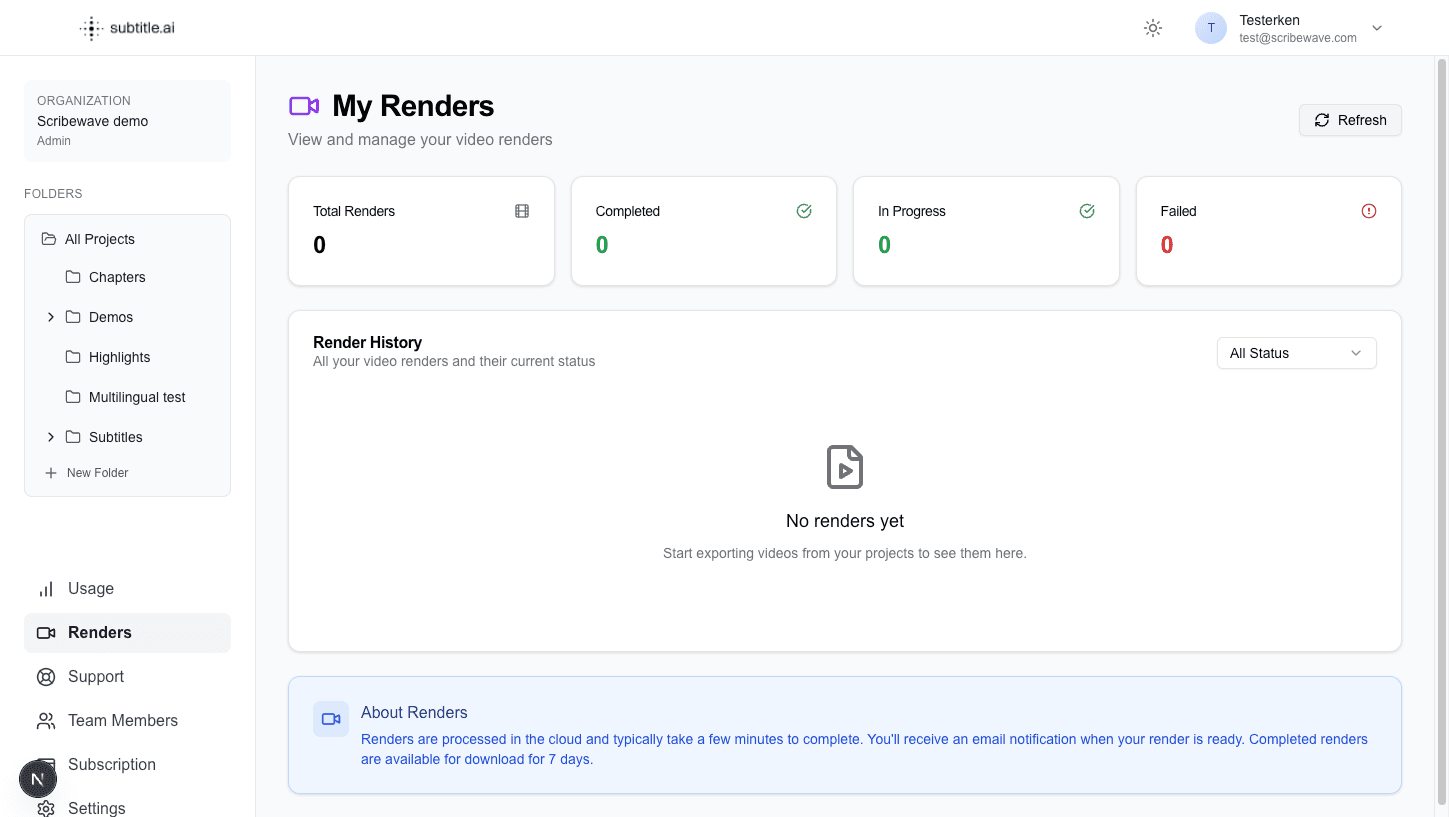
Follow your renders
- In the sidebar, click Renders.
- Find your render under Render History. To narrow the list, use the status filter: Completed, Rendering, Pending or Failed.
- When it is Completed, click the download button on its row.
The page shows each render's project, type (Full Video, Clip, Highlight or Chapter), status, length, size and when it was made, with totals at the top. It updates on its own; Refresh updates it straight away. Click a project's name to open it in the editor.
- Which renders: the page lists the renders you started in the last 3 days.
- Download in time: finished videos are removed after 3 days. Download the ones you want to keep.
- Email: you get an email when a render is ready, unless you turned off Render is ready in notification settings.
- Failed renders: a render that fails is marked Failed, and its credits are returned.
- Delete: click the bin on a render's row and confirm with Delete. This cannot be undone.
Render several projects at once
Render up to 10 projects in one go, each with its subtitles burned in.
- On the Projects page, tick the projects you want to render.
- Click Download and open Video.
- Click Render 3 videos. The number matches the projects you selected.
- Click View render progress to follow them on the Renders page.
The window lists which renders started, and why any did not.
- Language: each video shows the project's original transcript. Translations are not rendered in bulk; render those from the editor.
- Style: each video uses that project's own style and aspect ratio from the Style panel.
- Lead-in: bulk renders do not apply the subtitle lead-in. Render from the editor if your delivery needs it.
- Cost: each video's credits are taken when its render starts. The window does not show the total beforehand, so check your organization's credit balance first. A project that does not fit in your balance is not rendered, and a render that fails gets its credits back.
- Skipped: projects that are not ready yet are left out. A project that is already rendering is not rendered or charged twice.
Tips
- Check the style and aspect ratio of each project before a bulk render.
- Use clear project names: the Renders page lists videos by project.